

Access to Open Banking Directory
To begin the process of setting up all that is required for registering eachInstitution in the UK, you will need access to the Open Banking Directory where you will be prompted to log in using the PingId authentication mobile application. If you have not already gone through the process of setting this up, you will need to go through their enrolment process first.
Entity Selection
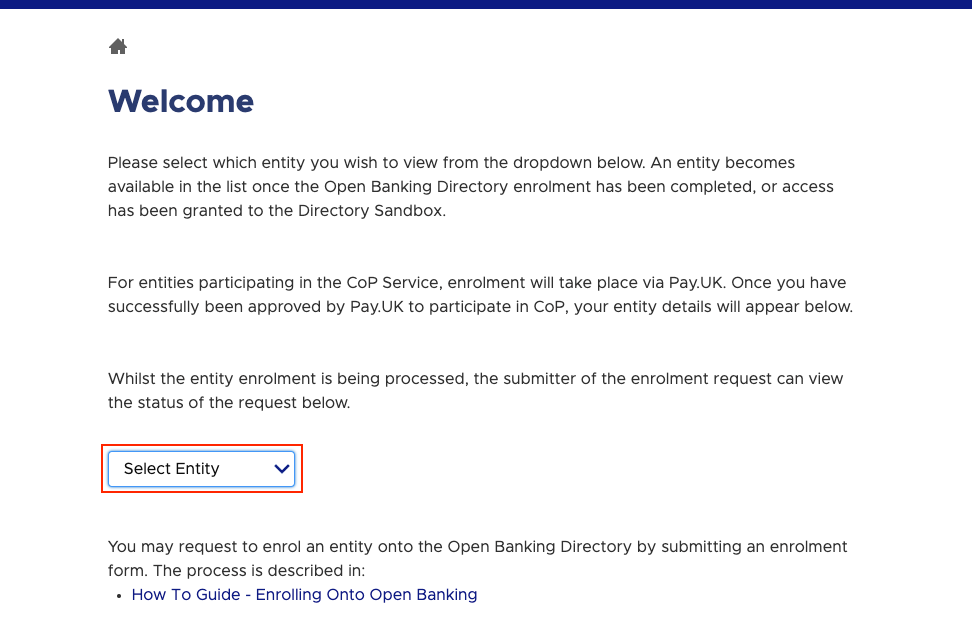
Once logged in, you will be able to see your organisation as one of the available entities:Entity Selection Screen
Entity Selection Screen
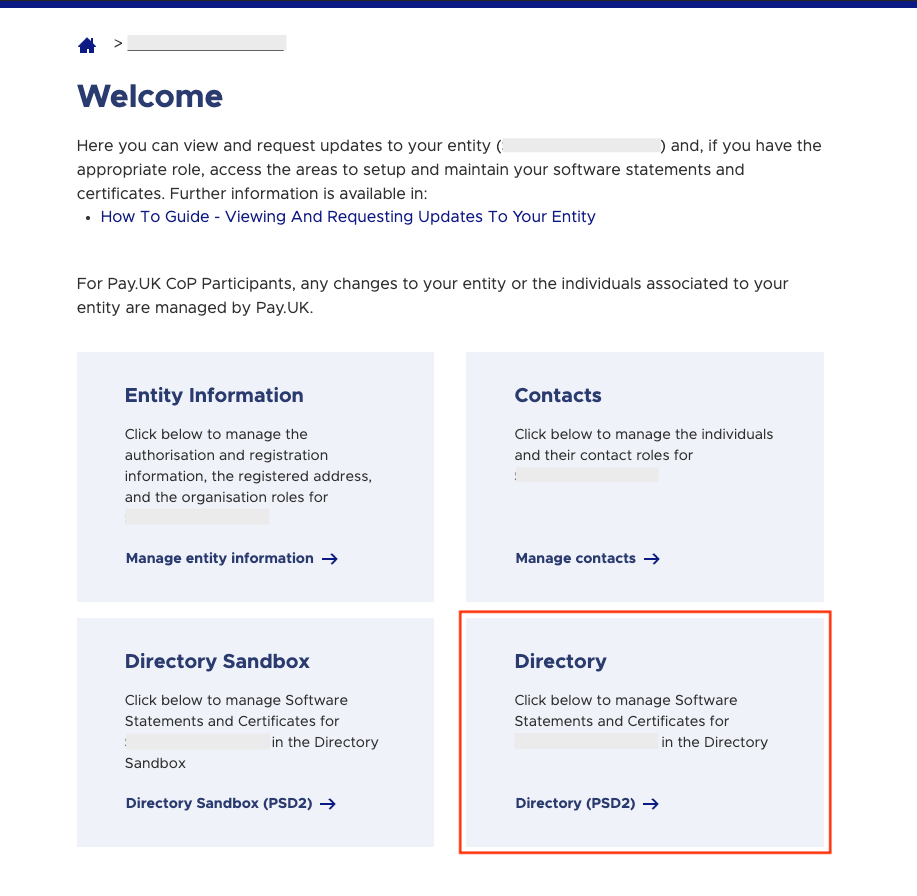
- Contacts: Manage access to who has access to features in the Open Banking Directory
- Entity Information: Here you will have key information about your organisation
- Directory Sandbox: Here you can manage the configuration for registering with sandboxes
- Directory: Here you can manage the configuration for live banks
Directory PSD2 Option
Directory PSD2 Option
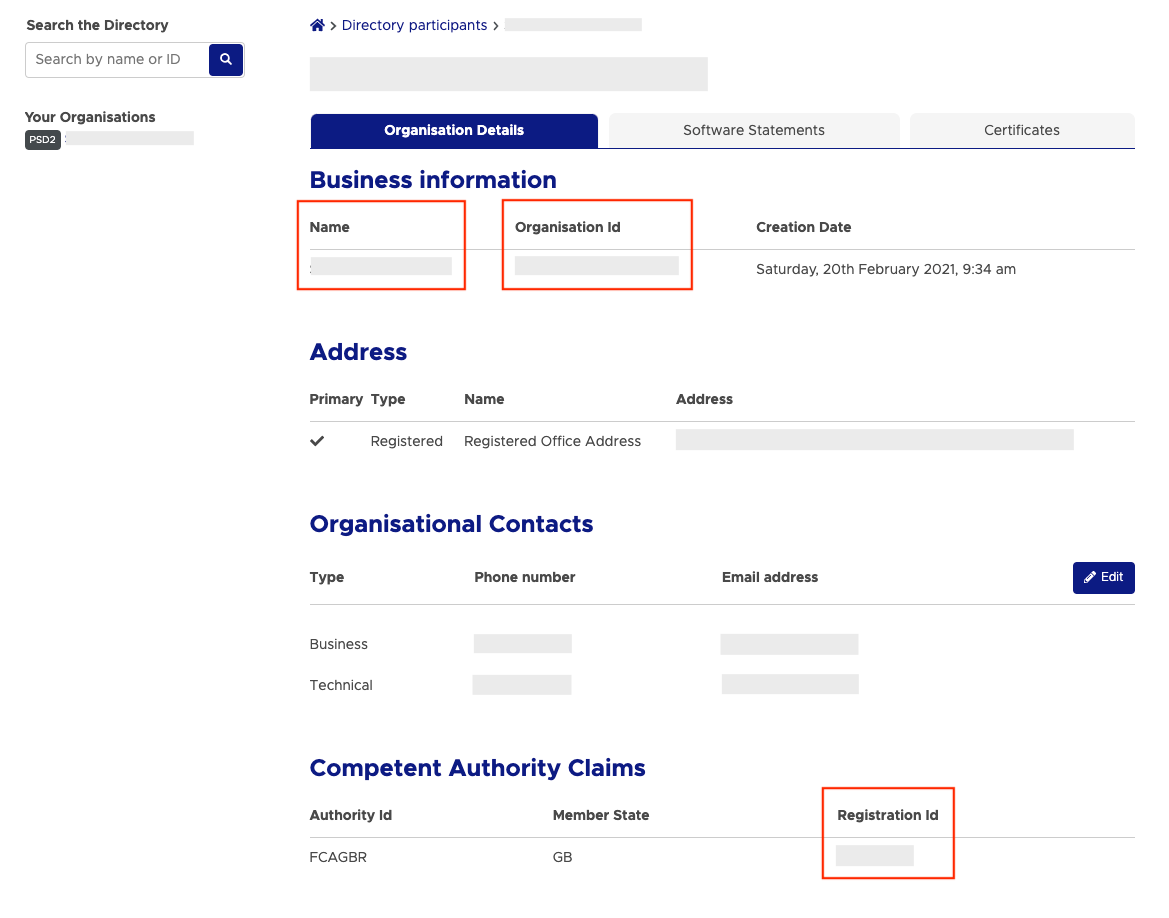
Organisation Details Overview
Once logged into the Directory (PSD2) of the appropriate entity, you will see an overview of your organisation details. Take note of the following fields which will be required when creating your certificates:- Business Information Name: Your registered company name
- Business Information Organisation Id: Your organisation identifier
- Competency Authority Claims Registration Id: The registration identifier from your National Competent Authority (the FCA in the UK)
- Competency Authority Claims Authorisations: Take note of which roles you’re approved for e.g. AISP and/or PISP
Organisation Details Overview
Organisation Details Overview
Create Certificates
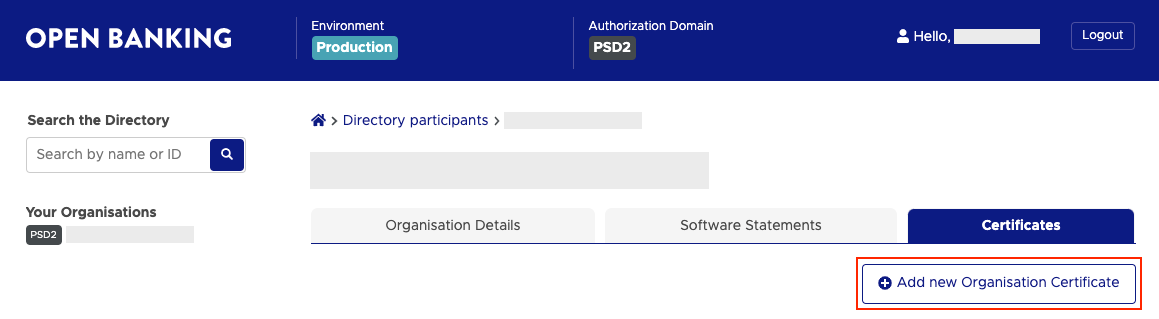
From the Organisation Details tab, select the Certificates tab and select the Add New Organisation Certificate option to create a new set of certificates:Certificates Tab
Certificates Tab
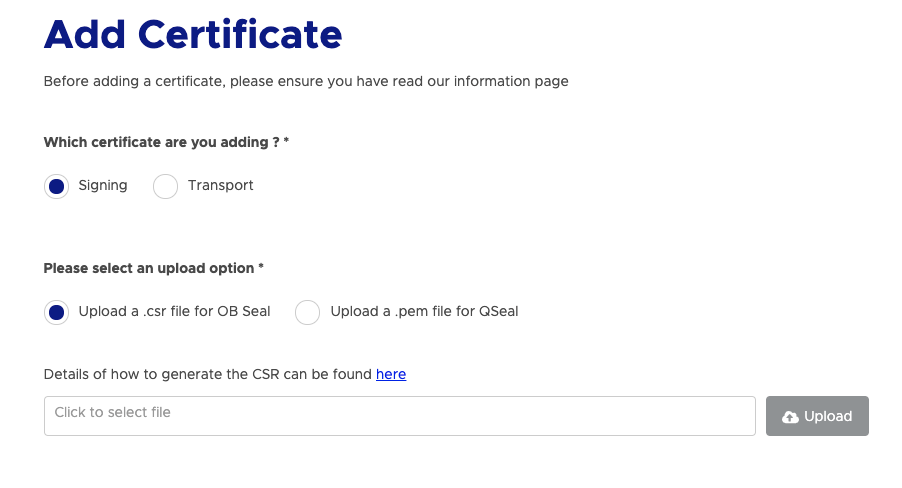
Certificate Upload Form
Certificate Upload Form
Create a Software Statement
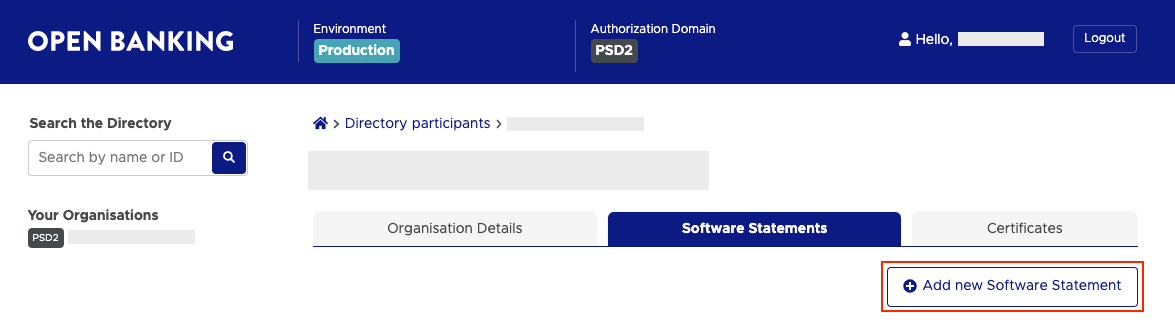
A software statement is a collection of information that describes the purpose of your Open Banking application for each `Institution` in the UK that your customers will be connecting to. You can have multiple software statements to separate out your different environments or use-cases e.g. your staging application vs your production application or your mobile traffic vs your web traffic. To create a software statement, from the Organisation Details tab, select the Software Statements tab and select the Add new Software Statement option to create a new software statement:Software Statements Tab
Software Statements Tab
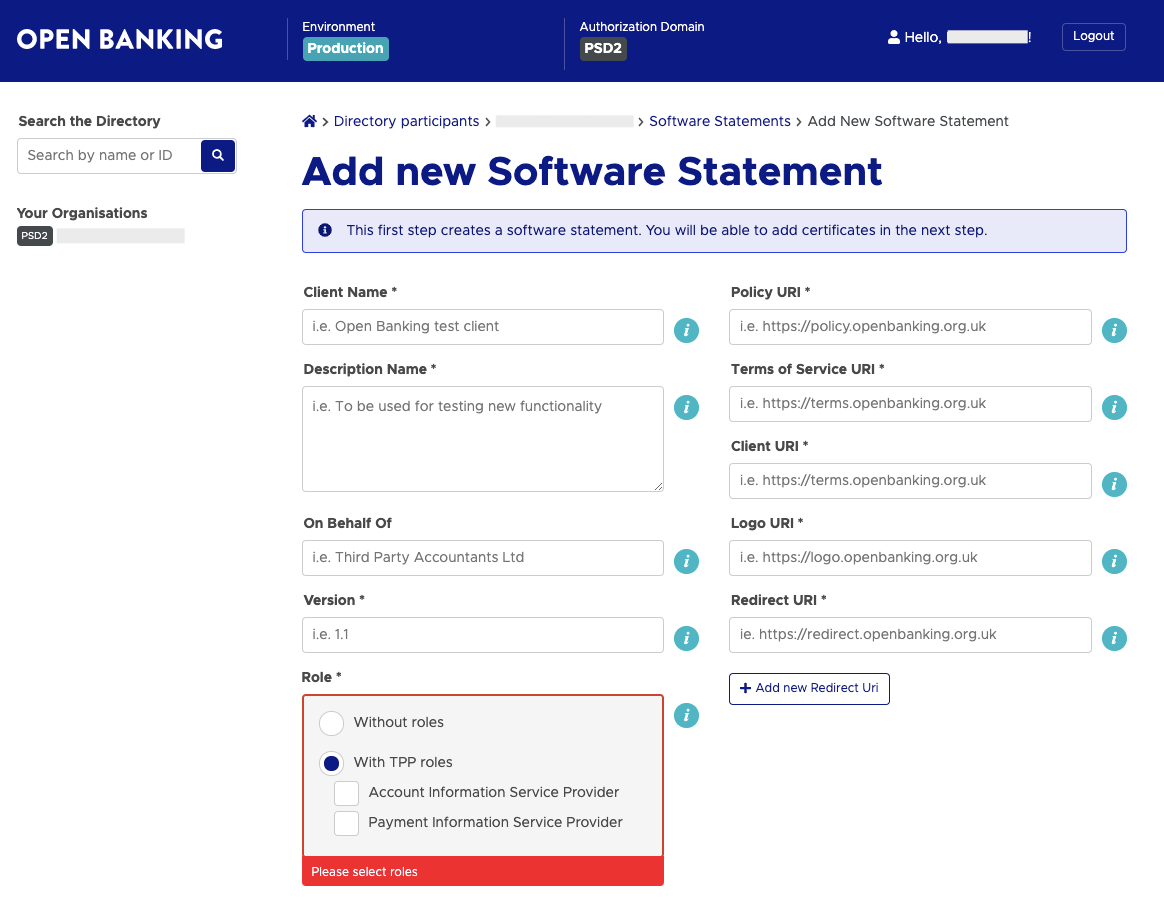
- Client Name: This is the name of your business that will be visible to the PSU in the `Institution`
- Role: This defines whether you will be permitted to use AISP and/or PISP functionality with this software statement
- Policy URI: A link to your organisation’s policies
- Terms of Service: A link to your organisation’s terms of service
- Client URI: A link to your organisation’s home page
- Logo URI: A link to your organisation’s logo
- Redirect URI: One or more redirectUrls that your software will use
Software Statement Creation Form
Software Statement Creation Form
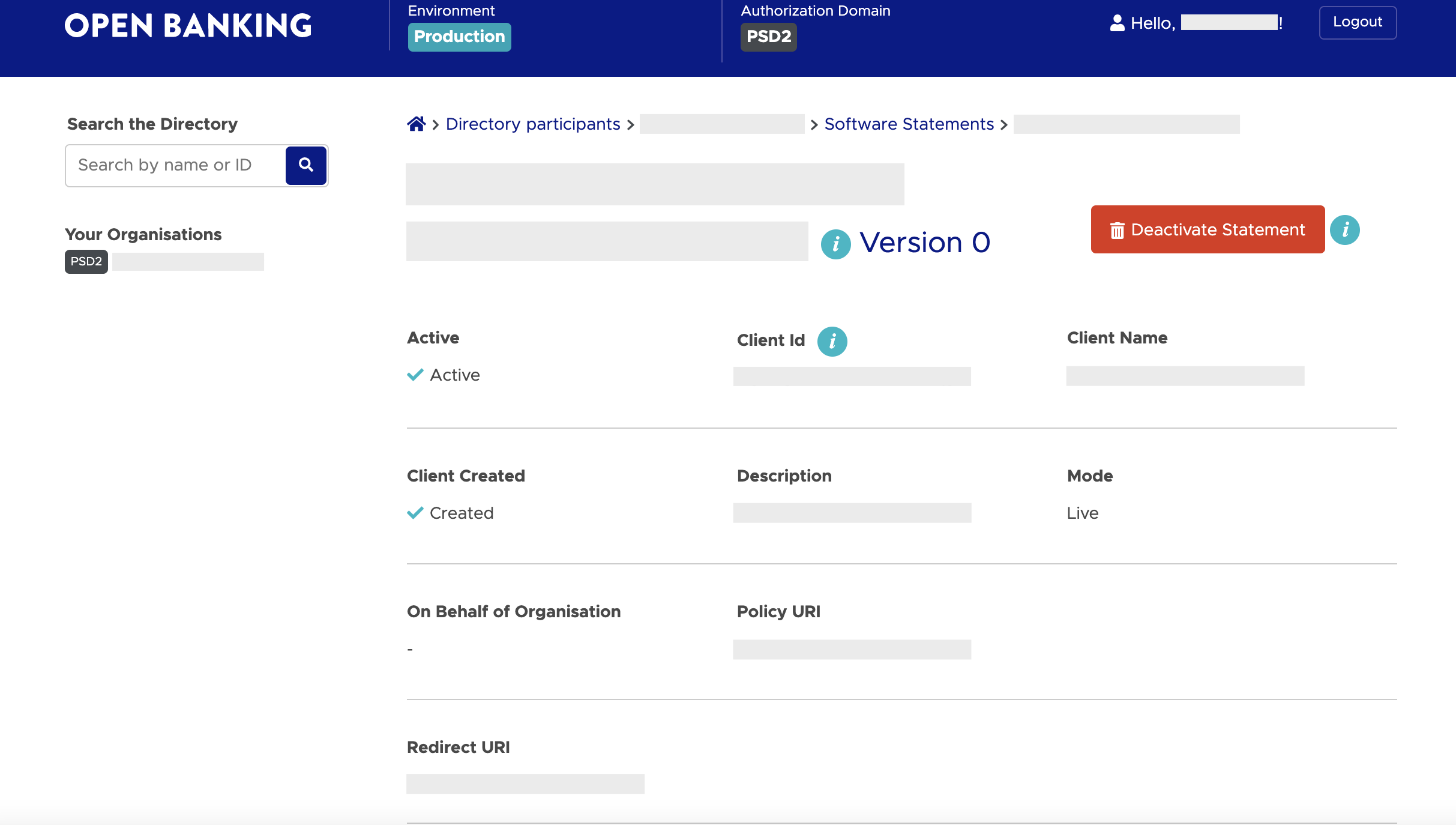
Software Statement ID
Software Statement ID
Software statements can not be edited or deleted after creation, however, you have the ability to add more redirects to an existing software statement or to completely add new software statements. Be aware that as you edit or create new software statements, that you will have to go through the process of Bank Registration again for each `Institution`.
Assigning Certificates to a Software Statement
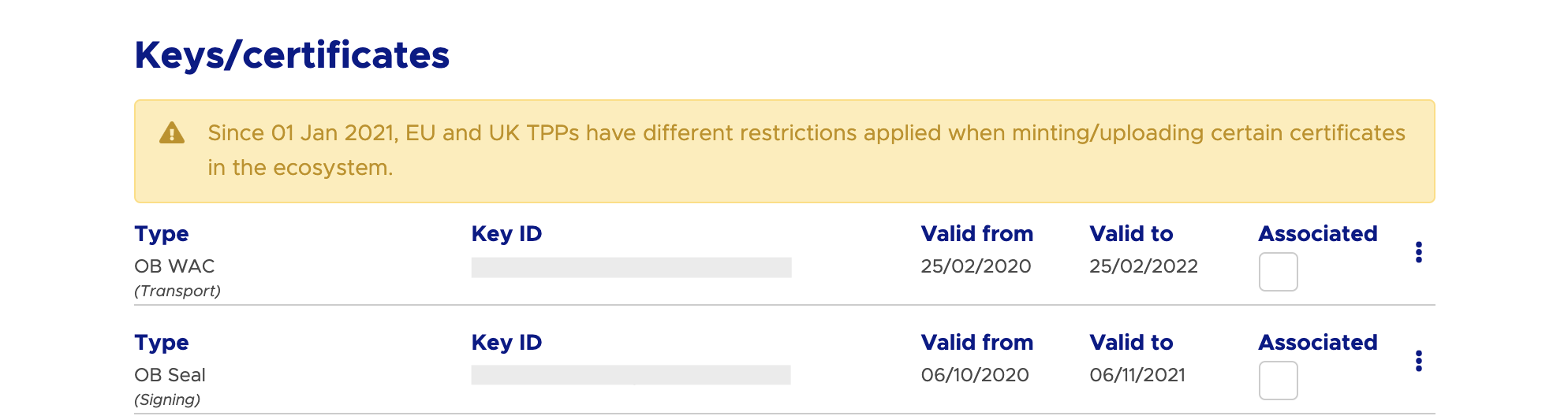
The last step for finalising the Software Statement is to assign so valid certificates to it. If you scroll to the Keys/certificates section, you should be able to see the organisational level OB WAC and OB SEAL certificates you created:Keys and Certificates Section
Keys and Certificates Section
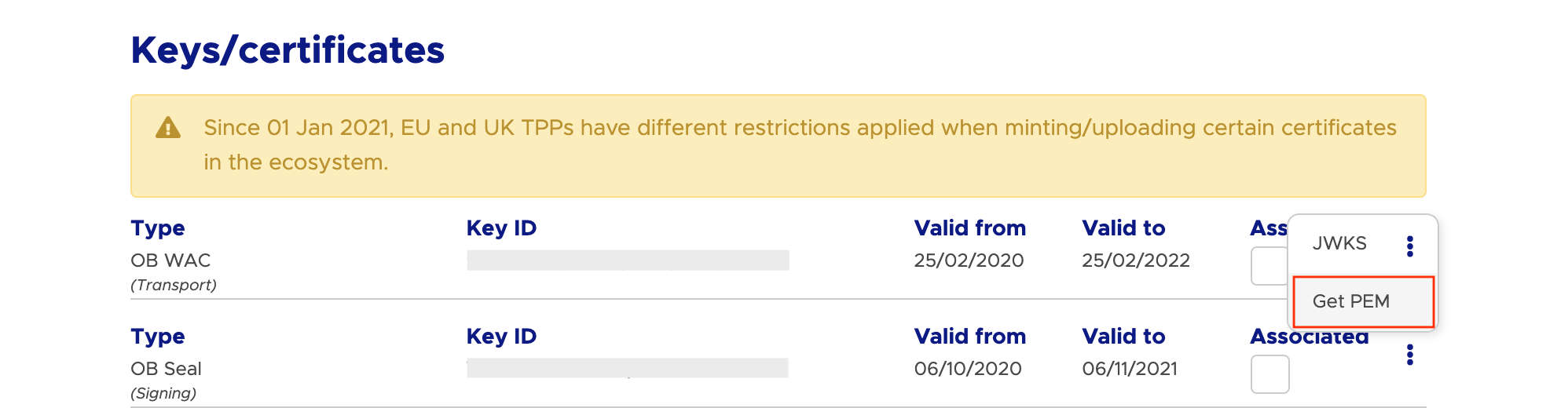
Download PEM Files
Download PEM Files
Naming your Open Banking Certificates
Now, you are ready to upload the certificates to the Yapily Console. In order to help with better identifying your certificates, you can rename each of the files accordingly: ```shell [cert-type].[company-name].KID.[cert-kid].[file-extension] ``` You should end up with the following four files: ```shell obwac.[company-name].KID.[obwac-cert-kid].key obwac.[company-name].KID.[obwac-cert-kid].pem obseal.[company-name].KID.[obseal-cert-kid].key obseal.[company-name].KID.[obseal-cert-kid].pem ```Generating a Software Statement Assertion
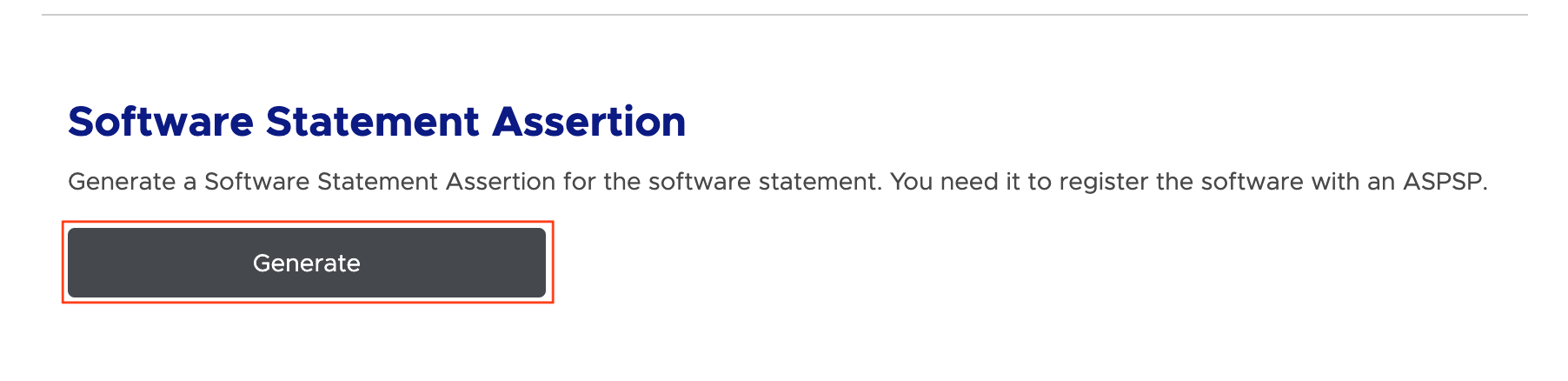
For any `Institution` that has a manual registration process, you may be required to provide a Software Statement Assertion to the `Institution` during the registration. This is token essentially holds all the information about your software statement such as the redirect url to use and is what the `Institution` will use to validate any requests that you initiate to the `Institution` on the behalf of the PSU. To generate a Software Statement Assertion, scroll to the bottom of the page on the Software Statement tab for the intended software statement and select the Generate button:Software Statement Assertion
Software Statement Assertion
Certificate Renewals
The only time you should be concerned about creating new certificates is when your certificates are about to expire. You should set a reminder in good time to go through the process of creating new certificates before they expire. When this time comes, you do not need to go through the full bank registration process, however, you must create new certificates and assign them to your software statement(s) and also add these new certificates to the Yapily Console. Finally, you need to make sure each `Institution` registration uses your new certificates on the first page of the `Institution` registration in the Yapily Console.Back to registration